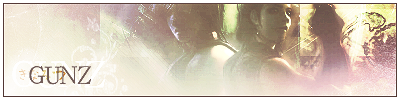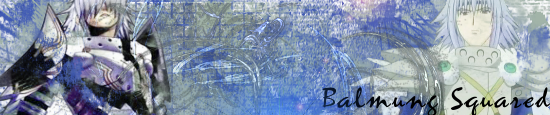
Xae-Solace wrote:Your sigs have an awesome style. How do u make some of those borders? Can you make a tutorial?
Edan wrote:Well I have time. So here's my suggestion while making signatures. First and foremost aquire yourself a decent image editing software such as Adobe Photoshop, Jasc Paint Shop Pro, or Macromedia Fireworks. Personally I'm an Adobe user so I perfer Photoshop and most of this tutorial may and will call upon features in APSCS8. Anyways to start off, figure out what you want, what message you want to convey, just because you want to convey a message doesn't necessary mean you'll be needing to put text, if you want to use text then think about an image with open space thats plain or at least not having contrasting colors where you plan to put the text over, and finally find yourself a smooth image and not any of that pixelated damaged images or images with pre-existing text. Infact, never use images with text in it already, or an image that has text that can be easily avoided or cleaned off.
Next up we check the site you're planning on placing this image and think about their signature rules and limitations. Image dimensions, file size, file type, animated/non-animated, content, and age group. Looking at all these rules can limit your choices and affect your planning in the long run.
Now that we have the program, we have the limitations, now we get started. Take your image and import it to a transparent new document in your program in RGB mode or any others but not CMYK which is used for printing, if your program offers layers, definitly use it. Layers are essential to getting your image just right in position and prevents destroying your images, its also good to name your layers. Now you place your base image on the bottom. If you want to do effects feel free to do so, APS offers filters which I rarely use but to an amature its always fun and cool. If you want to erase some areas, its always best to use the Mask tool since it keeps your image data, unlike erase which totally deletes what you erased for ever. Whereas Mask you can switch back and forth with black and white to remove and restore areas of the image. Once you got the image to the way you want it, now we need to crop. Select the cropping tool and crop your image to the size restrictions the site limits you to or by selecting an overall average size such as 400 x 123, this is my personal best choice but always go with less than the site asks. Now you can get creative here and cut the edges and smooth them out for a rounded effect, or you could use your slice tool and cut out some shapes such as crisp cut segments like angles and holes for some added style. If you want you could also use emboss to get a button feel to pull the edges up in a way, or using stroke to give a border around the whole image including those cut out spaces. Black at 1px outside or center is always choice.
Now as far as your text goes, always go with something simple and short. Anything too long could cause the viewer to loose intrest, inversely anything too short wouldn't grab that much attention to begin with. So always choose the right amount of words to fit between these categories. Or if your image doesn't call for it and speaks for yourself, skip to the final process. Your text should always stand out from the image to be seen and not hidden, unless you're going with a fading look but always best to still keep it entierly visible to the naked eye espically more than one word text. But always make sure not to have your text heavier than the image, otherwise people won't be able to see it. Make sure its located in a free area to prevent the background from creating the text harder to see. If your program offers Text Styles, never use the defaults. They may be nice but it cuts orginality and most the times don't go with your image. Create your own by playing with drop shadows, emboss, cover overlay, stroke, and textures. Ensure you placed the text where you want it because sometimes these effects could determine the visiblity and performance. i.e. drop shadows falling in a black background = pointless.
Finally we get to the final process, if your using the program use "Save for Web" or something similar to that nature. Never use the default saving process which doesn't save optimized. Now depending on what you made, if your signature fills the entire document with no see through to the transparent background, then save in JPG format and high or medium quality. If you have see through to the transparent backdrop then save in GIF format at either 32 or 64, try not to use 128 since the file size will be large and always choose no differ.
After that your pretty much done unless you want to go back and make a few more adjustments. Always keep the basics of these tips in mind. Other than that congradulations.